Finger Fixer Lite Manual
Installing and activating the plugin in Unreal Engine 5.6 & 5.7
Step 1: Access the Plugin tab in Unreal Engine

After launching the Unreal Engine project, access the Plugin tab, located in the Edit
Step 2: Find and enable the Plugin
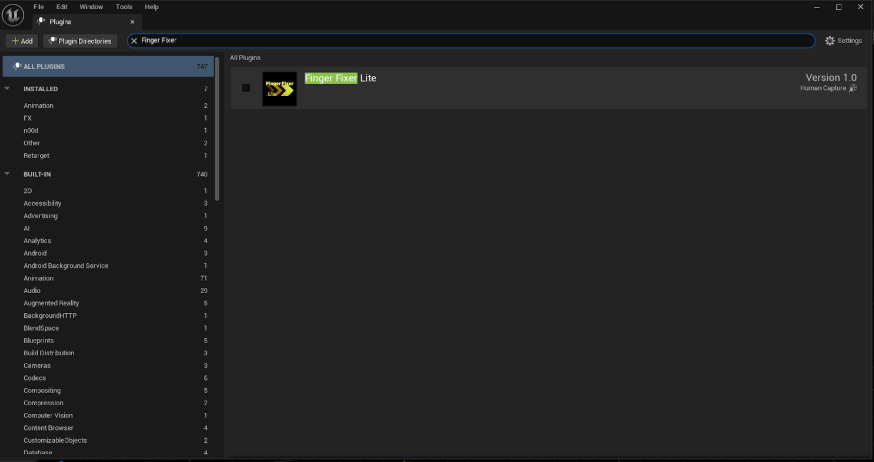
In plugin tab search bar type “Finger Fixer”. Make sure that you are on “all plugins” section, otherwise the plugin won’t be searched from full list of available plugins and may not show up.
Check the box next to the plugin. If it’s already checked you don’t have to do anything. The plugin is already installed in your engine and ready to use.
Step 3: Restarting the engine
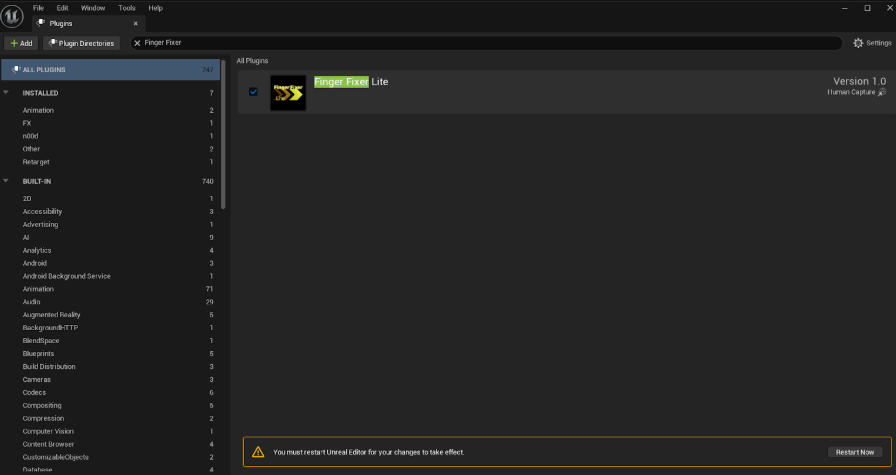
After checking the plugin, Unreal Engine will display the information that to use the plugin you’ll need to restart the engine itself.
Press “Restart now” button. The plugin will be ready to use after restarting.
Using the Finger Fixer Lite plugin in Unreal Engine projects

Step 4: Getting access to the plugin
When the plugin is installed in the engine you’ll see new icon in the level tab with yellow “X” mark on it.
Step 1: Accessing the plugin interface
Click the plugin icon to access its interface and functionalities.
The plugin window may open as a pop-up window in the engine. You may freely move it anywhere within your Unreal Engine’s interface.
Step 2: Understanding the plugin interface and functionalities
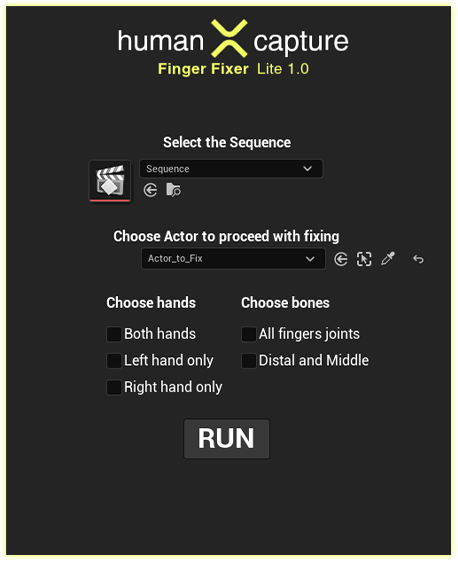
The plugin interface is built of three main sections explained in next steps of the manual:
Sequence selection
Actor selection
Hands and finger bones selection
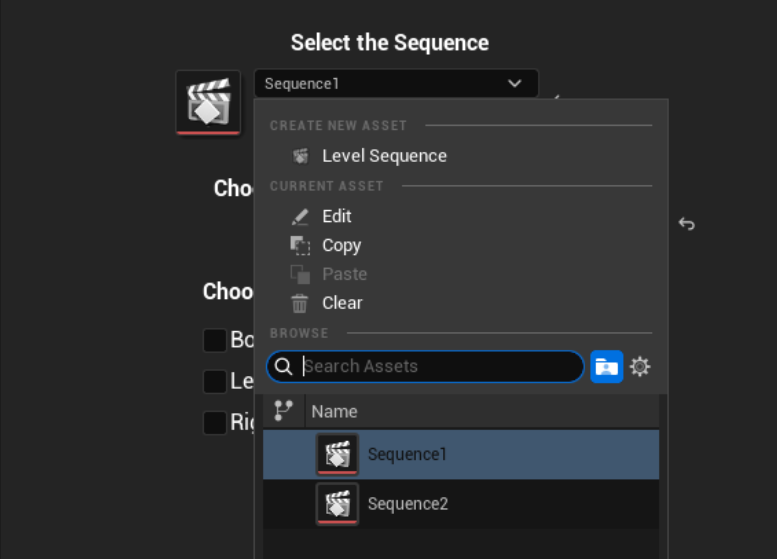
Step 3: Selecting the Sequence
Select the sequence of opened project, which has on its timeline the actor with the animation you want to fix.
Note, that selecting the sequence will automatically open it in the project and show it in the viewport.
After opening the sequence, its name will display next to the sequence icon in “Select the Sequence” section.
If you have the sequence already opened, its name will automatically display as preselected

Step 4: Choosing the actor
After selecting the sequence, the Actor’s dropdown list will show all of the actors present on the sequence’s timeline.
You can either:
Select the actor from the list
Type the actor’s binding name to filter the list
Or (recommended) use the pipette tool next to the dropdown list and use it to point the selected actor on the viewport.

Choose Bones
The plugin can be used in two modes:
Step 5: Choosing Hands & Bones
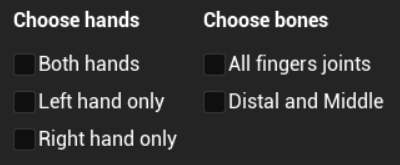
This section of the interface lets you select the joint groups you want it to fix:
Choose Hands
Allows you to select hands to fix. At this stage you only choose hands, not the joint groups:

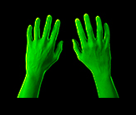
the plugin will automatically fix joints in both hands
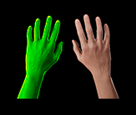

the plugin will fix only joints in selected actor’s left hand
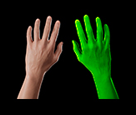

the plugin will fix only joints in selected actor’s right hand
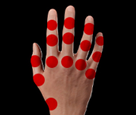

in this mode the plugin will target three finger joints (Distal, Middle and Proximal) in previously selected hand/hands
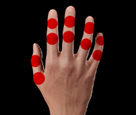


in this mode the plugin will target two of three finger joints (Distal and Middle) in previously selected hand/hands
Step 6: Running the fixing in joints
Press the “RUN” button on the bottom of the plugin interface to proceed with fixing of selected joints in selected actor’s hand/hands.
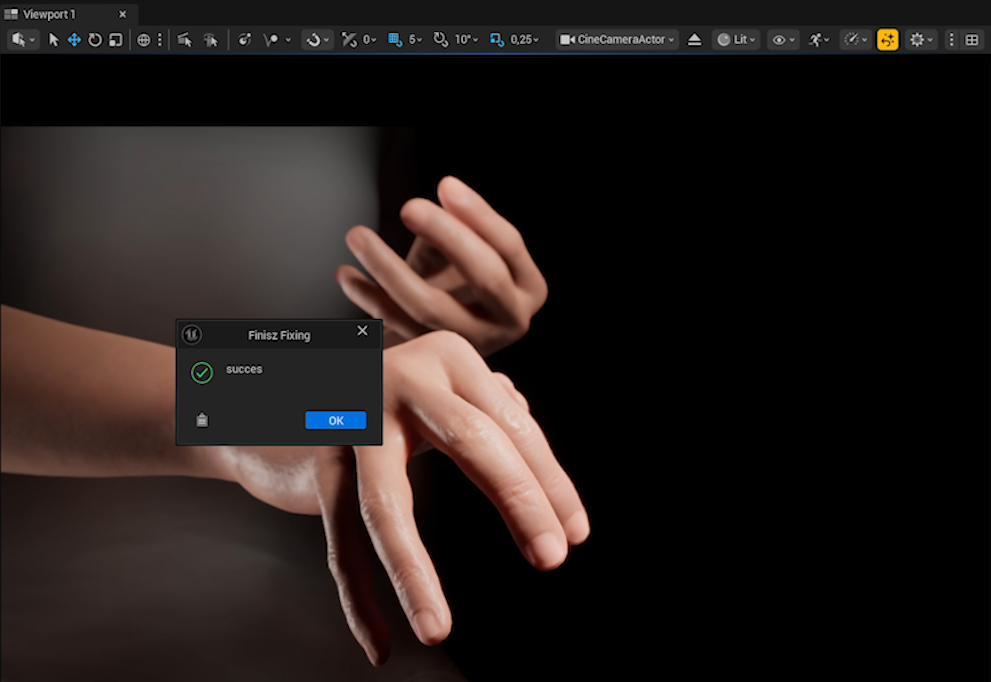
The plugin will change the information about local rotation informations of joints selected for cleaning. After processing the changes the plugin displays the information on the viewport. Press “ok” to see the result.
Important notes
The plugin will let you select any actor from the sequence, but will work only if selected actor meets the following conditions:
The actor is humanoid character with body animation asset on the sequence’s timeline
The animation asset is already baked to the control rig (the animation has keyframed joints on the timeline)
The animation was baked to one of following control rigs: MetaHuman_ControlRig, CR_Mannequin_Body or FK Control Rig
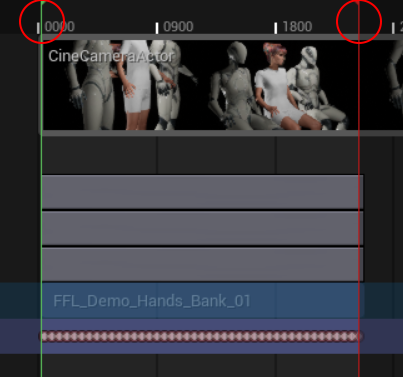
Start and end point of baked animation you want to fix is marked on the timeline with left and right brackets, used for playback in-out.